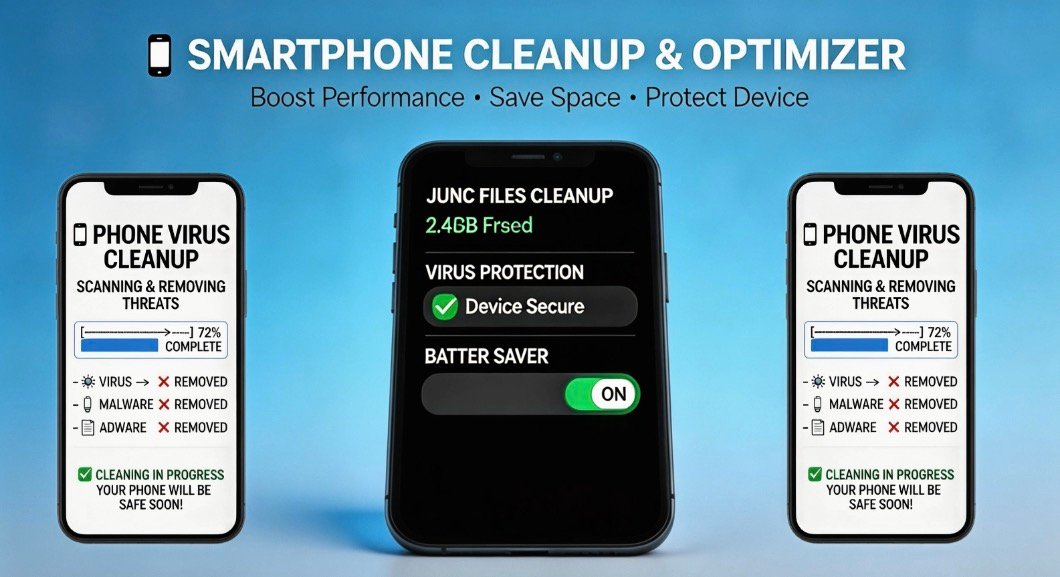
1 • Understanding the Enemy: What is a Phone Virus?
Technically, “virus” is a catch-all term for various types of malware (malicious software) designed to infiltrate your mobile device. Unlike PC viruses that often destroy files, mobile malware typically aims to:
• Spyware: Secretly record your keystrokes or track your GPS.
• Adware: Flood your screen with intrusive, unclosable pop-up ads.
• Ransomware: Lock your files and demand payment for access.
• Trojan Horses: Disguise themselves as legitimate apps (like a calculator or a flashlight) to steal banking credentials.
Signs Your Phone is Infected
• Rapid Battery Drain: Malware often runs heavy background processes.
• Unexpected Overheating: The processor is working overtime to send data to hackers.
• Data Usage Spikes: Large amounts of data are being uploaded without your knowledge.
• Ghost Apps: New icons appear on your home screen that you never downloaded.
2 • Step-by-Step Guide: How to Manually Clean Your Phone
If you suspect an infection, follow these steps immediately to isolate and remove the threat.
Step 1 • Disconnect and Isolate
The moment you notice suspicious behavior, turn off your Wi-Fi and Mobile Data. This prevents the malware from communicating with its “Command and Control” server or leaking your data further.
Step 2 • Enter Safe Mode
Safe Mode is a diagnostic environment where third-party apps are disabled.
• Hold the Power Button until the power options appear.
• Long-press the “Power Off” or “Restart” icon.
• Confirm the prompt to Reboot to Safe Mode.
In this mode, if the “glitches” stop, you know for certain a third-party app is the culprit.
Step 3: Identify and Uninstall Suspicious Apps
Navigate to Settings > Apps > See all apps. Look for:
• Apps with no icon or a generic name.
• Apps you don’t remember installing.
• Utility apps (cleaners, flashlights, or battery boosters) from unknown developers.
Select “Uninstall” for any suspicious software.
Step 4: Clear Browser Cache and Downloads
Many “fake virus” alerts come from malicious scripts stored in your browser.
• Android: Go to Settings > Apps > Chrome > Storage > Clear Cache.
• Downloads: Open your “Files” app and delete any .apk files you didn’t intentionally download.
3 • The Role of Cleanup APKs: Why Use Them?
While manual cleaning works for known apps, Cleanup APKs (specialized mobile security and optimization apps) are essential for deeper sanitation. These tools are designed to handle what the human eye might miss.
Core Functions of a Cleanup APK
| Feature | Benefit
| Malware Scanner | Compares your apps against a massive database of known threats. |
| Junk Cleaner | Deletes “residual files” left behind by uninstalled malware. |
| Real-time Protection | Scans new apps before you open them. |
| RAM Booster | Kills hidden background processes that malware uses to stay active. |
How They Help
• Deep Scanning: They scan the system’s root folders and hidden directories that are normally inaccessible to the user.
• Vulnerability Audits: A good cleanup app will tell you if your system software is outdated, which is often how viruses get in.
• App Permissions: They highlight “aggressive” apps—for example, a simple game that is asking for permission to read your SMS or access your contacts.
4 • Preventive Measures for the Future
Cleaning your phone is the cure, but prevention is the vaccine.
• Stick to Official Stores: Only download apps from the Google Play Store or Apple App Store. These platforms use “Play Protect” to pre-scan apps for malicious code.
• Avoid “Cracked” APKs: Free versions of paid apps found on forums are the #1 source of mobile Trojans.

Cleaning a phone from viruses is no longer just about “speeding it up”—it is a critical security procedure.
This guide explores how to identify threats, the manual steps to sanitize your device, and how Cleanup APKs serve as a dual-purpose tool for both optimization and protection.
- Enable Play Protect: Open the Play Store, tap your profile, and ensure Play Protect is scanning your device daily.
- Update Regularly: Software updates aren’t just for new emojis; they contain “Security Patches” that close the holes hackers use to enter.
Conclusion
A “clean” phone is a combination of smart habits and the right tools. While manual removal through Safe Mode is your first line of defense, a reputable Cleanup APK acts as a permanent guard, ensuring your device remains fast and your data stays private.
Regularly auditing your apps and clearing your digital clutter doesn’t just make your phone run like new—it makes it a fortress.
Would you like me to recommend some reputable, high-rated security and cleanup apps from the Play Store for you to check out?
DOWNLOAD
- In today’s interconnected world, our mobile phones are essentially digital extensions of ourselves. Because they hold everything from bank details to private conversations, they are prime targets for malware. If your phone is acting sluggish, showing weird pop-ups, or draining battery like a leaky faucet, it’s time for a cleanup.
Identifying the Red Flags
Before diving into the cleanup, you need to confirm you actually have an “infection.” Standard mobile viruses often manifest as • Rapid Battery Drain: Malicious processes running in the background consume significant energy. • Overheating: The CPU is overworked by hidden tasks (like crypto-mining or data exfiltration).
• Spikes in Data Usage: Malware often “calls home” to a server to upload your personal info. • Intrusive Pop-ups: Constant ads, even when your browser is closed, are a classic sign of adware.
Step-by-Step Cleanup Guide
1 • Isolate the Device
The moment you suspect a virus, turn off your Wi-Fi and mobile data. This prevents the malware from communicating with its developer or spreading to other devices on your network.
2 • Enter Safe Mode (Android)
Safe Mode is your best friend for manual cleanup because it disables all third-party apps.
• Hold the Power button until the power options appear.
• Long-press Power Off until the “Reboot to Safe Mode” prompt appears.
• Once in Safe Mode, look for apps you don’t recognize. If an app won’t let you uninstall it, check Settings > Security > Device Admin Apps and revoke its permissions first.
3 • Clear Browser Cache and Downloads
Not all malware is an “app.” Sometimes, malicious scripts hide in your browser’s temporary files.
• For Android (Chrome): Settings > Apps > Chrome > Storage > Clear Cache.
• For iOS (Safari): Settings > Safari > Clear History and Website Data.
4 • Use a Reputable Scanner
If manual deletion feels like finding a needle in a haystack, use a dedicated security tool. Stick to big names like Bitdefender, Malwarebytes, or Avast. Avoid “free cleaner” apps with flashy icons—ironically, these are often the very source of adware.
5 • The “Nuclear Option”: Factory Reset
If the symptoms persist, a factory reset is the most effective way to wipe the slate clean.
Warning: This will erase everything on your phone. Ensure you have a backup of your photos and contacts, but do not restore a full system backup immediately after, as you might reinstall the virus along with your data.
Future-Proofing Your Phone
Cleanup is a hassle; prevention is easy. To stay safe in 2026 and beyond:
• Enable Play Protect: On Android, ensure this is toggled on in the Play Store settings.
• Avoid Sideloading: Only download apps from official stores (Google Play or Apple App Store).
